Personalizing Genie Code with instructions, skills, memory, and MCP
Make Genie Code work the way you and your team already do.
by Samantha Banchik, Gal Oshri, Romain Rigaux, Will Tipton and Chloe Chan
*Genie Code can follow your personal and team's conventions with Instructions, Skills, and MCP Servers.
*Reuse what already exists. Bring in team workflows, internal documentation, and external tools without pasting them into every prompt.
*Stay flexible and governed. Use personal skills for individual ways of working, workspace skills for shared team workflows, and admin-approved MCP servers for scalable external context in agent mode.
Genie Code works best when it understands how your team actually operates: your coding standards, internal workflows, shared tools, and the context behind past decisions.
That’s why we’ve introduced a set of features that allow you to tailor Genie Code to your organization and workflows. Instructions help define team-wide preferences, Skills capture repeatable workflows, and MCP Servers connect Genie Code directly to systems like Jira, GitHub, and Google Drive.
Custom Instructions
Custom Instructions let you set persistent preferences that Genie Code applies in every agent mode session. They're a good fit for things that are always true about how you work: your preferred coding language, output format, or general style guidelines.
The limitation is that instructions are global. If you add a SQL formatting rule, it fires whether you're writing SQL or debugging Python. For preferences that apply everywhere, instructions are the right tool. For context that's only relevant to a specific task, you need something more targeted.
For team-level conventions, Genie Code can also automatically discover AGENTS.md and CLAUDE.md files within your project. Once these files are checked into a repository, Genie Code picks them up automatically, so teammates don’t need to configure the same context individually.
Agent skills
Agent Skills are a way to teach Genie Code how to perform specific tasks the way you do.
A skill is a markdown based package that describes a workflow, pattern, or action Genie Code can use when operating in agent mode. Skills can include guidance, reusable code, and executable scripts, all scoped to a particular task instead of applied globally.
Each skill includes a name and description that help Genie Code determine when it is relevant. When a request matches a skill, Genie Code loads it and uses the guidance, patterns, and code it contains to respond appropriately.
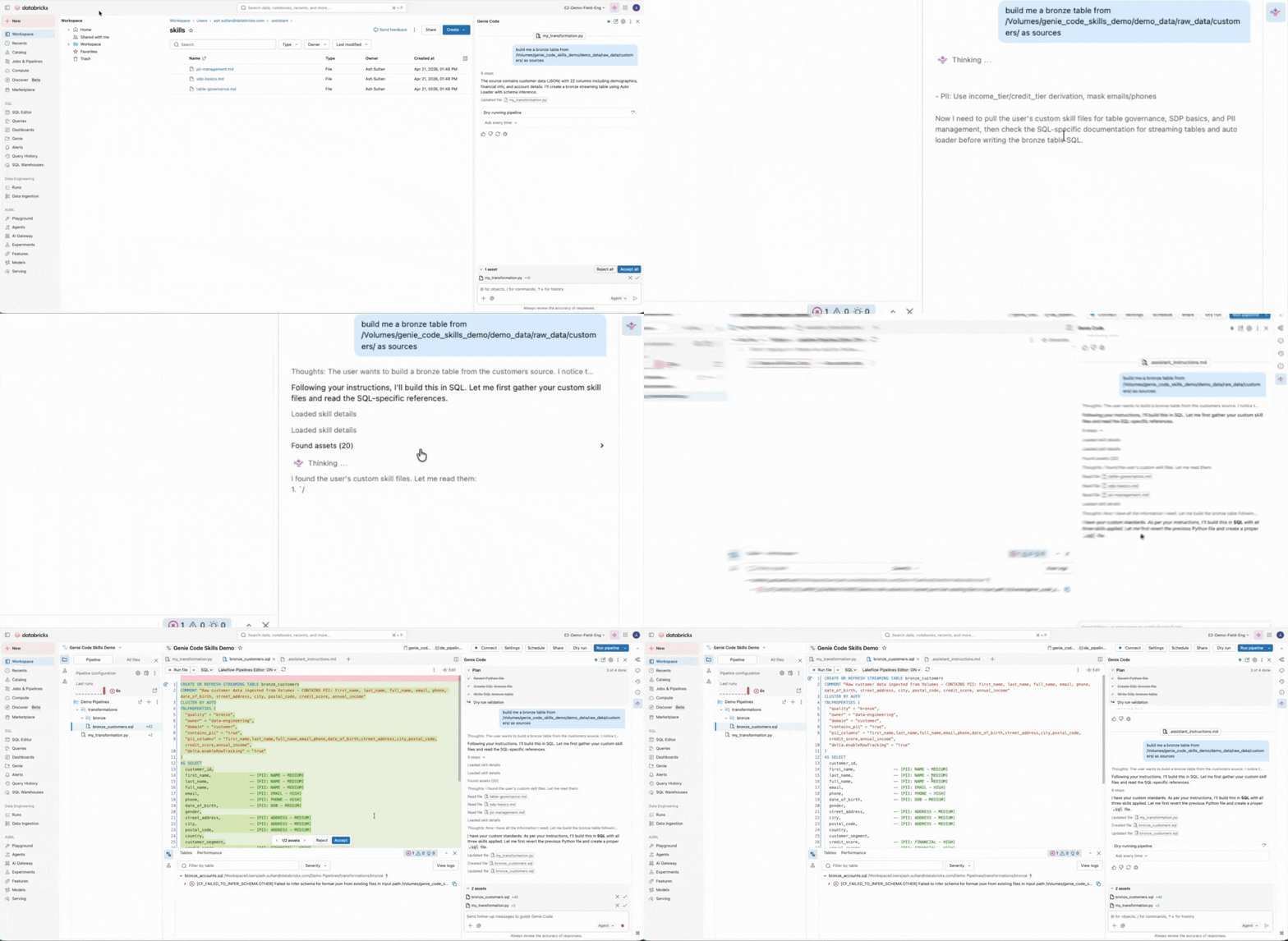
How to add skills?
To get started:
- Open your skills folder. In Genie Code, open Settings, navigate to User Skills, and select Open Skills Folder. This opens your personal skills directory (/Users/{username}/.assistant/skills/).
- Create or update a skill. Add a new markdown file. Each skill should include a clear name and description so Genie Code knows when it applies. You can organize related files into folders and optionally include scripts for more advanced workflows.
Workspace skills
In addition to personal skills, workspace admins can create skills that are automatically available to everyone in the workspace. Workspace skills live in Workspace/.assistant/skills/.
Workspace skills follow the same format as personal skills, but they are scoped to the team rather than an individual. This makes them a good fit for workflows that should be shared and used consistently across an organization — for example, a skill that enforces ML pipeline naming conventions, routes Genie Code to the right internal runbook during incident response, or applies your team's standard data quality checks to every new pipeline.
MCP servers
Skills address the context that lives in your head or your team's standards. MCP servers address context that already exists somewhere else.
In early 2025, we introduced MCP support in Databricks to make rich, external context available to AI agents in a governed and scalable way. MCP provides a standardized way to expose tools, data, and workflows to Genie Code without embedding that context directly into prompts or instructions.
Genie Code can now leverage any MCP servers that have been added to your workspace and that you have permission to use. Workspace admins control which servers are available, while users can select from those approved sources as needed.
For common tools like Google Drive, SharePoint, and GitHub, Databricks also offers managed OAuth flows, currently in beta, that handle authentication without manual token configuration. To enable this, turn on Third Party Connectors for Agents in your preview settings. From there, any user can enable these MCP Servers by simply clicking on the plus button in the Genie Code prompt bar.

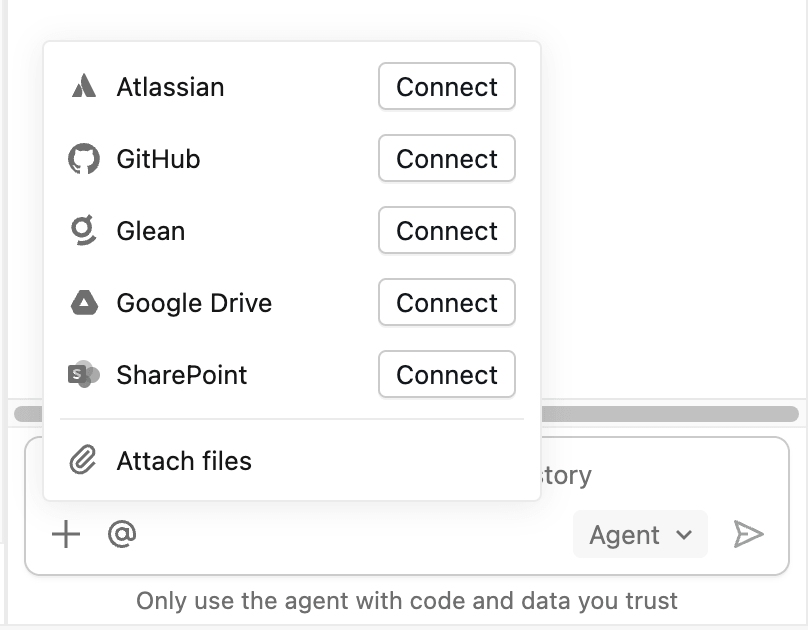
MCP is designed for cases where important context already exists but is difficult to access from Genie Code. For example:
- Internal documentation systems. Teams often keep runbooks or operational docs in tools like Confluence. Instead of copying sections into prompts, that content can be exposed once and referenced when relevant.
- Internal tools and services. Platform teams may maintain APIs or scripts for setup, validation, or deployment. MCP allows those capabilities to be made available to Genie Code directly, rather than explained or pasted repeatedly.
In these cases, MCP replaces manual copy pasting with a structured, reusable approach, making the right context available only when it is needed.
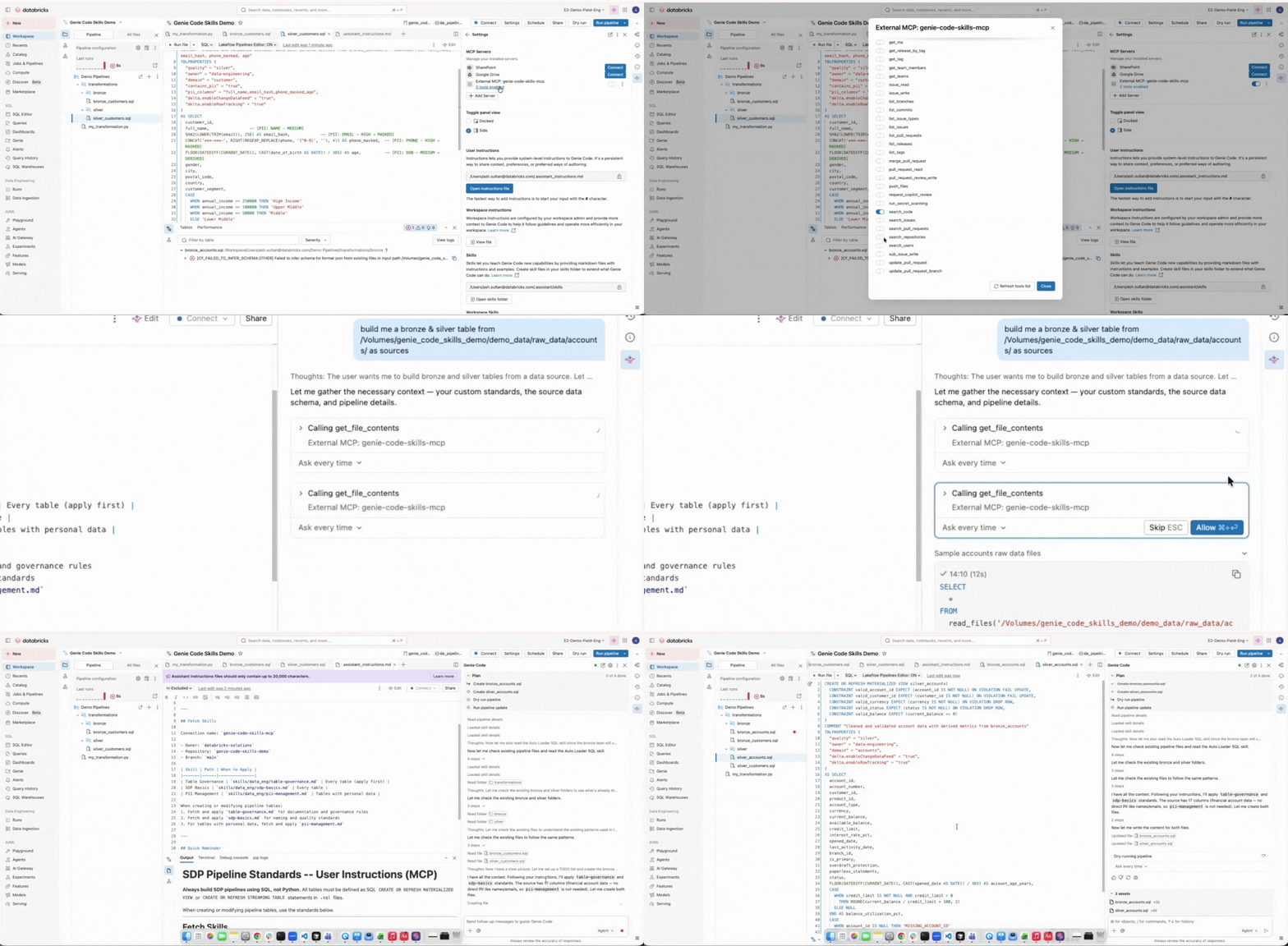
How to add MCP servers?
Databricks supports multiple types of MCP servers, including managed servers for Databricks services, external servers connected through Unity Catalog, and custom MCP servers hosted on Databricks Apps. You can browse available servers in the MCP marketplace which is accessible directly from the Genie Code settings panel. Workspace admins control which servers are available, and users can select from the servers they have permission to use.
Once MCP servers are available in your workspace, using them in Genie Code is straightforward:
- Open Genie Code settings
- Select Add Server
- Choose from the available MCP server types
- Save your selection
- If the server requires authentication, follow the login prompts to authorize the connection. Your credentials are stored securely and you won't need to re-authenticate each session.
MCP servers are available immediately after you add them. Genie Code accesses tools from these servers automatically when relevant.
Tips and tricks
- Let Genie Code create skills for you. After working through a workflow in agent mode, just tell Genie Code to capture it as a skill; it will generate the markdown file and save it to your skills folder automatically.
- Keep skills focused. One workflow per skill file makes it easier for Genie Code to know when to apply it and easier to maintain over time. The name and description are what Genie Code uses to decide when a skill is relevant, so the more specific they are, the better.
- Skills are just markdown files. That means they're easy to share, version-control, and sync across your team. For ready-to-use examples to get started with, see the Genie Code skills demo repo.
- Portable Team Conventions: Genie Code automatically detects AGENTS.md and CLAUDE.md files in your workspace and applies them without additional setup. Teams can share the same conventions, instructions, and workflows across repositories and development environments while keeping context consistent wherever they work.
Try personalizing Genie Code today
Instructions, Skills, and MCP Servers are all available when using Genie Code in agent mode.
To learn more, check out the product documentation for Genie Code.
Get the latest posts in your inbox
Subscribe to our blog and get the latest posts delivered to your inbox.