Expensive Delta Lake S3 Storage Mistakes (And How to Fix Them)
Optimize Cloud Storage buckets for Delta Lake tables: Fix Mistakes, Cut Costs, Boost Performance.
by Zach King
- Lifecycle Policies and Object Versioning
- Storage Classes
- Best Practice Bucket Deployment
1. Introduction: The Foundation
Cloud object storage, such as S3, is the foundation of any Lakehouse Architecture. You are the owner for the data stored for your Lakehouse, not the systems that use it. As data volume increases, either due to ETL pipelines or more users querying tables, so do cloud storage costs.
In practice, we’ve identified common pitfalls in how these storage buckets are configured, which result in unnecessary costs for Delta Lake tables. Left unchecked, these habits can lead to wasted storage and increased network costs.
In this blog, we’ll discuss the most common mistakes and offer tactical steps to both detect and fix them. We’ll use a balance of tools and strategies that leverage both the Databricks Data + AI Platform and AWS services.
2. Key Architectural Considerations
There are three aspects of cloud storage for Delta tables we’ll consider in this blog when optimizing costs:
- Object vs. Table Versioning - how S3 vs. Delta Lake versions your data.
- Storage Classes (hot/cool/cold/archive) - cheaper storage for long-term, infrequent access.
- Data Transfer - the cost of reading and writing data with S3.
Object vs. Table Versioning
Cloud-native features alone for object versioning don’t work intuitively for Delta Lake tables. In fact, it essentially contradicts Delta Lake as the two are competing to solve the same problem–data retention–in different ways.
To understand this, let’s review how Delta tables handle versioning and then compare that with S3's native object versioning.
How Delta Tables Handle Versioning
Delta Lake tables write each transaction as a manifest file (in JSON or Parquet format) in the _delta_log/ directory, and these manifests point to the table’s underlying data files (in Parquet format). When data is added, modified, or deleted, new data files are created. Thus, at a file level, each object is immutable. This approach optimizes for efficient data access and robust data integrity.
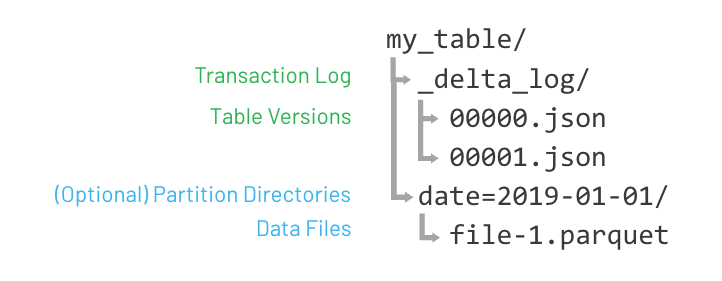
Delta Lake inherently manages data versioning by storing all changes as a series of transactions in the transaction log. Each transaction represents a new version of the table, allowing users to time-travel to previous states, revert to an older version, and audit data lineage.
How S3 Handles Object Versioning
S3 also offers native object versioning as a bucket-level feature. When enabled, S3 retains multiple versions of an object; these can only be 1 current version of the object, and there can be several noncurrent versions.
When an object is overwritten or deleted, S3 marks the previous version as noncurrent and then creates the new version as current. This offers protection against accidental deletions or overwrites.
The problem with this is that it conflicts with Delta Lake versioning in two ways:
- Delta Lake only writes new transaction files and data files; it does not overwrite them.
- If storage objects are part of a Delta table, we should only operate on them using a Delta Lake client such as the native Databricks Runtime or any engine that supports the open-source Unity Catalog REST API.
- Delta Lake already provides protection against accidental deletion via table-level versioning and time-travel capabilities.
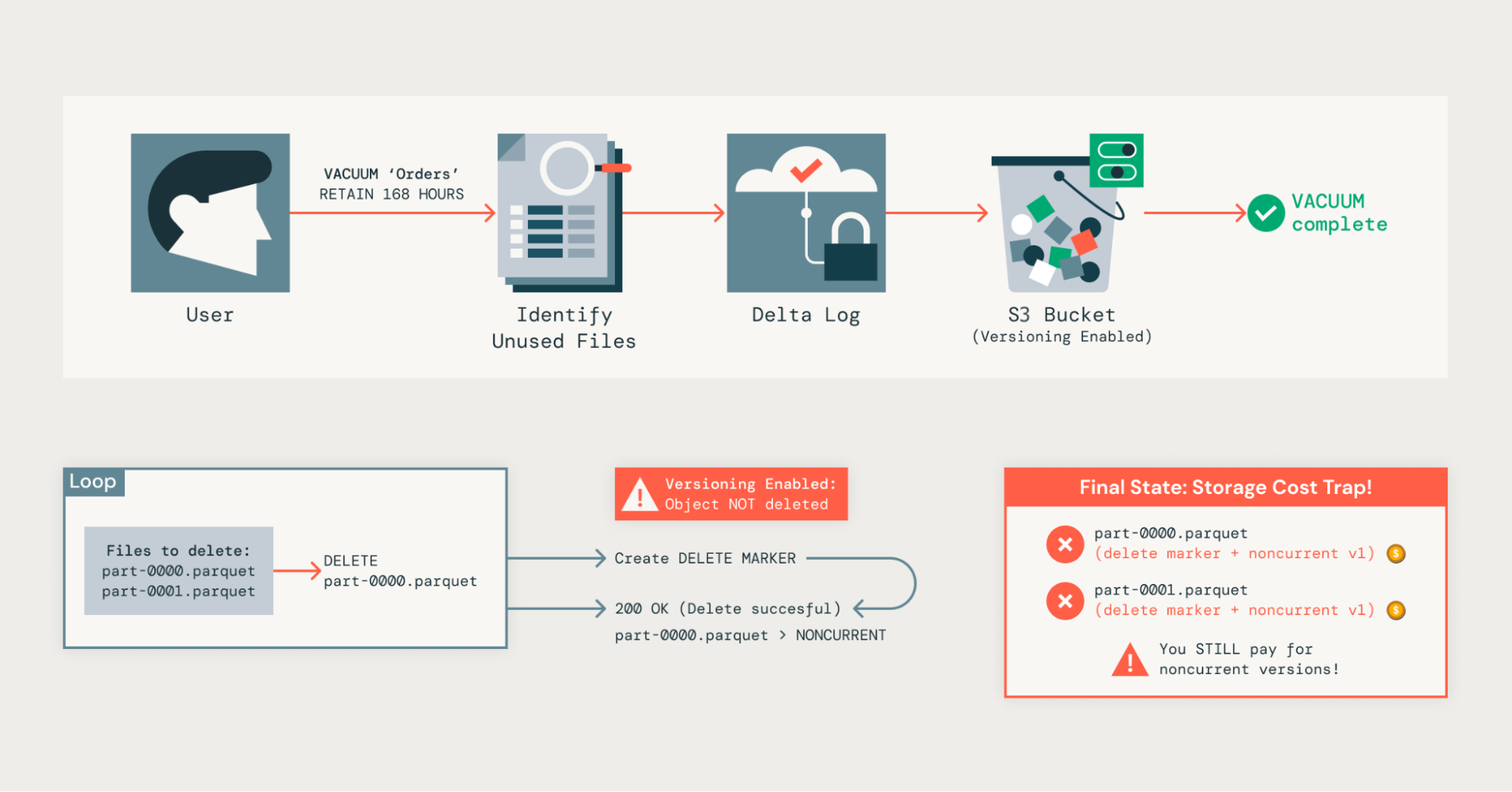
- We vacuum Delta tables to remove files that are no longer referenced in the transaction log.
- However, because of S3’s object versioning, this doesn’t fully delete the data; instead, it becomes a noncurrent version, which we still pay for.
Storage Tiers
Comparing Storage Classes
S3 offers flexible storage classes for storing data at rest, which can be broadly categorized as hot, cool, cold, and archive. These refer to how frequently data is accessed and how long it takes to retrieve:
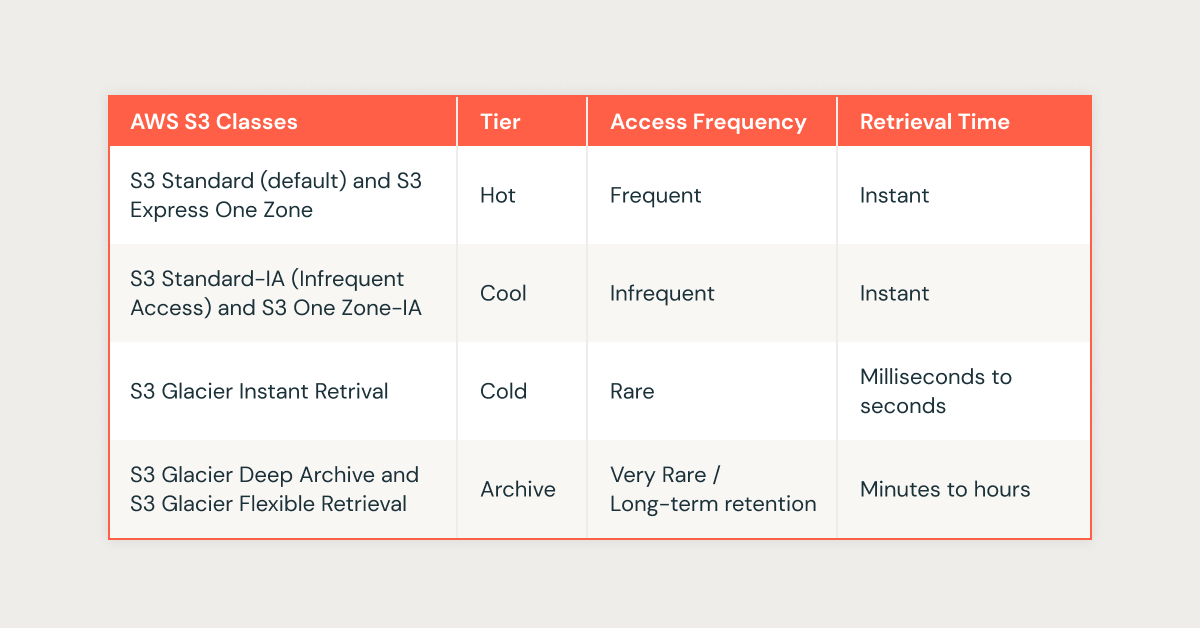
Colder storage classes have a lower cost per GB to store data, but incur higher costs and latency when retrieving it. We want to take advantage of these for Lakehouse storage as well, but if applied without caution, they can have significant consequences for query performance and even result in higher costs than simply storing everything in S3 Standard.
Storage Class Mistakes
Using lifecycle policies, S3 can automatically move files to different storage classes after a period of time from when the object was created. Cool tiers like S3-IA seem like a safe option on the surface because they still have a fast retrieval time; however, this depends on exact query patterns.
For example, let’s say we have a Delta table that is partitioned by a created_dt DATE column, and it serves as a gold table for reporting purposes. We apply a lifecycle policy that moves files to S3-IA after 30 days to save costs. However, an analyst queries the table without a WHERE clause, or needs to use data further back, and uses WHERE created_dt >= curdate() - INTERVAL 90 DAYS, then several files in S3-IA will be retrieved and incur the higher retrieval cost. To the analyst, they may not realize they’re doing anything wrong, but the FinOps team will notice elevated S3-IA retrieval costs.
Even worse, let’s say after 90 days, we move the objects to the S3 Glacier Deep Archive or Glacier Flexible Retrieval class. The same problem occurs, but this time the query actually fails because it attempts to access files that must be restored or thawed prior to use. This restoration is a manual process typically performed by a cloud engineer or platform administrator, which can take up to 12 hours to complete. Alternatively, you can choose the “Expedited” retrieval method, which takes 1-5 minutes. See Amazon’s docs for more details on restoring objects from Glacier archival storage classes.
We’ll see how to mitigate these storage class pitfalls shortly.
Data Transfer Costs
The third category of expensive Lakehouse storage mistakes is data transfer. Consider which cloud region your data is stored in, from where it is accessed, and how requests are routed within your network.
When S3 data is accessed from a region different than the S3 bucket, data egress costs are incurred. This can quickly become a significant line item on your bill and is more common in use cases that require multi-region support, such as high-availability or disaster-recovery scenarios.
NAT Gateways
The most common mistake in this category is letting your S3 traffic route through your NAT Gateway. By default, resources in private subnets will access S3 by routing traffic to the public S3 endpoint (e.g., s3.us-east-1.amazonaws.com). Since this is a public host, the traffic will route through your subnet’s NAT Gateway, which costs approximately $0.045 per GB. This can be found in AWS Cost Explorer under Service = Amazon EC2 and Usage Type = NatGateway-Bytes or Usage Type = <REGION>-DataProcessing-Bytes.
This includes EC2 instances launched by Databricks classic clusters and warehouses, because the EC2 instances are launched within your AWS VPC. If your EC2 instances are in a different Availability Zone (AZ) than the NAT Gateway, you also incur an additional cost of approximately $0.01 per GB. This can be found in AWS Cost Explorer under Service = Amazon EC2 and Usage Type = <REGION>-DataTransfer-Regional-Bytes or Usage Type = DataTransfer-Regional-Bytes.
With these workloads typically being a significant source of S3 reads and writes, this mistake may account for a substantial percentage of your S3-related costs. Next, we’ll break down the technical solutions to each of these problems.
3. Technical Solution Breakdown
Fixing NAT Gateway S3 Costs
S3 Gateway Endpoints
Let’s start with possibly the easiest problem to fix – VPC networking, so that S3 traffic doesn’t use the NAT Gateway and go over the public Internet. The simplest solution is to use an S3 Gateway Endpoint, a regional VPC Endpoint Service that handles S3 traffic for the same region as your VPC, bypassing the NAT Gateway. S3 Gateway Endpoints don’t incur any costs for the endpoint or the data transferred through it.
Script: Identify Missing S3 Gateway Endpoints
We provide the following Python script for locating VPCs within a region that do not currently have an S3 Gateway Endpoint.
Note: To use this or any other scripts in this blog, you must have installed Python 3.9+ and boto3 (pip install boto3). Additionally, these scripts cannot be run on Serverless compute without using Unity Catalog Service Credentials, as access to your AWS resources is needed.
Save the script to check_vpc_s3_endpoints.py and run the script with:
You should see an output like the following:
Once you have identified these VPC candidates, please refer to the AWS documentation to create S3 Gateway Endpoints.
Multi-Region S3 Networking
For advanced use cases that require multi-region S3 patterns, we can utilize S3 Interface Endpoints, which require more setup effort. Please see our complete blog with example cost comparisons for more details on these access patterns:
https://www.databricks.com/blog/optimizing-aws-s3-access-databricks
Classic vs Serverless Compute
Databricks also offers fully managed Serverless compute, including Serverless Lakeflow Jobs, Serverless SQL Warehouses, and Serverless Lakeflow Spark Declarative Pipelines. With serverless compute, Databricks does the heavy lifting for you and already routes S3 traffic through S3 Gateway Endpoints!
See Serverless compute plane networking for more details on how Serverless compute routes traffic to S3.
Archival Support in Databricks
Databricks offers archival support for S3 Glacier Deep Archive and Glacier Flexible Retrieval, available in Public Preview for Databricks Runtime 13.3 LTS and later. Use this feature if you must implement S3 storage class lifecycle policies, but want to mitigate the slow/expensive retrieval discussed previously. Enabling archival support effectively tells Databricks to ignore files that are older than the specified period.
Archival support only allows queries that can be answered correctly without touching archived files. Therefore, it is highly recommended to use VIEWs to restrict queries to only access unarchived data in these tables. Otherwise, queries that require data in archived files will still fail, providing users with a detailed error message.
Note: Databricks does not directly interact with lifecycle management policies on the S3 bucket. You must use this table property in conjunction with a regular S3 lifecycle management policy to fully implement archival. If you enable this setting without setting lifecycle policies for your cloud object storage, Databricks still ignores files based on the specified threshold, but no data is archived.
To use archival support on your table, first set the table property:
Then create a S3 lifecycle policy on the bucket to transition objects to Glacier Deep Archive or Glacier Flexible Retrieval after the same number of days specified in the table property.
Identify Bad Buckets
Next, we will identify S3 bucket candidates for cost optimization. The following script iterates S3 buckets in your AWS account and logs buckets that have object versioning enabled but no lifecycle policy for deleting noncurrent versions.
The script should output candidate buckets like so:
Estimate Cost Savings
Next, we can use Cost Explorer and S3 Lens to estimate the potential cost savings for a S3 bucket’s unchecked noncurrent objects.
Amazon released the S3 Lens service that delivers an out-of-the-box dashboard for S3 usage, which is usually available at https://console.aws.amazon.com/s3/lens/dashboard/default.
First, navigate to your S3 Lens dashboard > Overview > Trends and distributions. For the primary metric, select % noncurrent version bytes, and for the secondary metric, select Noncurrent version bytes. You can optionally filter by Account, Region, Storage Class, and/or Buckets at the top of the dashboard.
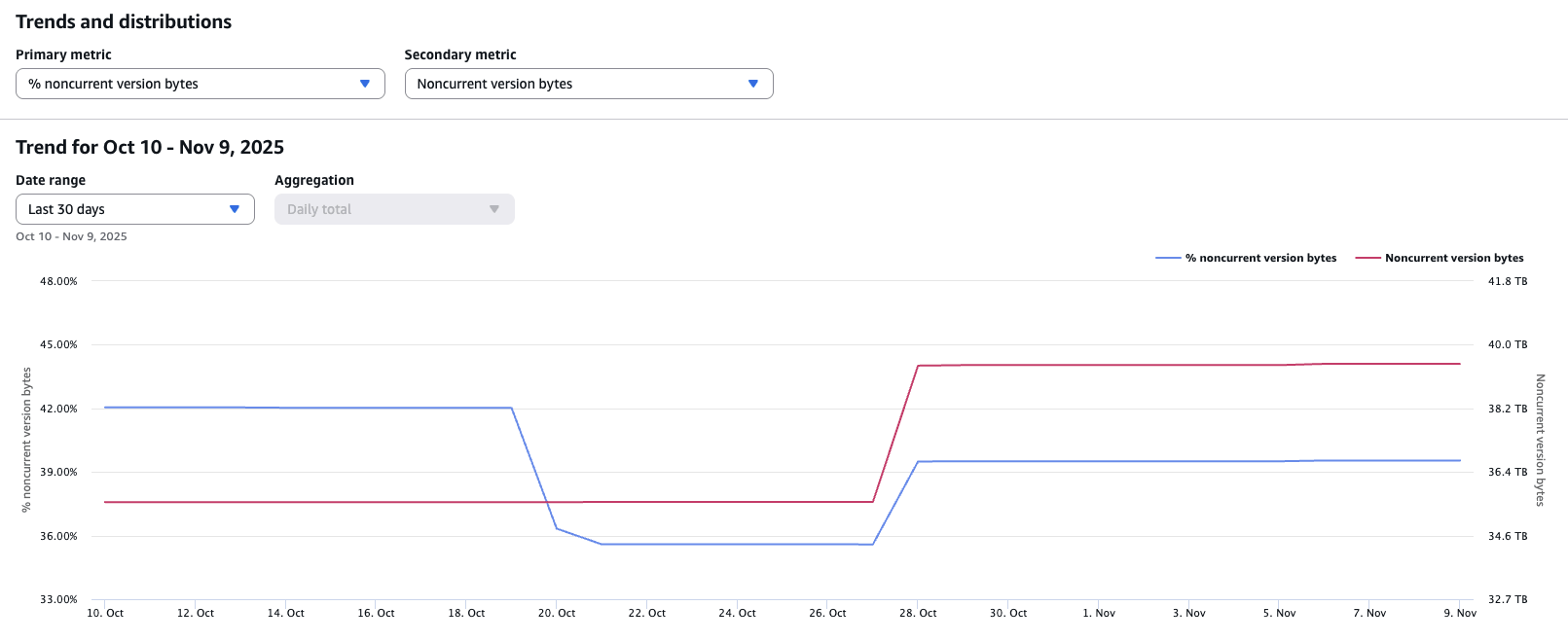
In the above example, 40% of the storage is occupied by noncurrent version bytes, or ~40 TB of physical data.
Next, navigate to AWS Cost Explorer. On the right side, change the filters:
- Service: S3 (Simple Storage Service)
- Usage type group: select all of the S3: Storage * usage type groups that apply:
- S3: Storage - Express One Zone
- S3: Storage - Glacier
- S3: Storage - Glacier Deep Archive
- S3: Storage - Intelligent Tiering
- S3: Storage - One Zone IA
- S3: Storage - Reduced Redundancy
- S3: Storage - Standard
- S3: Storage - Standard Infrequent Access
Apply the filters, and change the Group By to API operation to get a chart like the following:
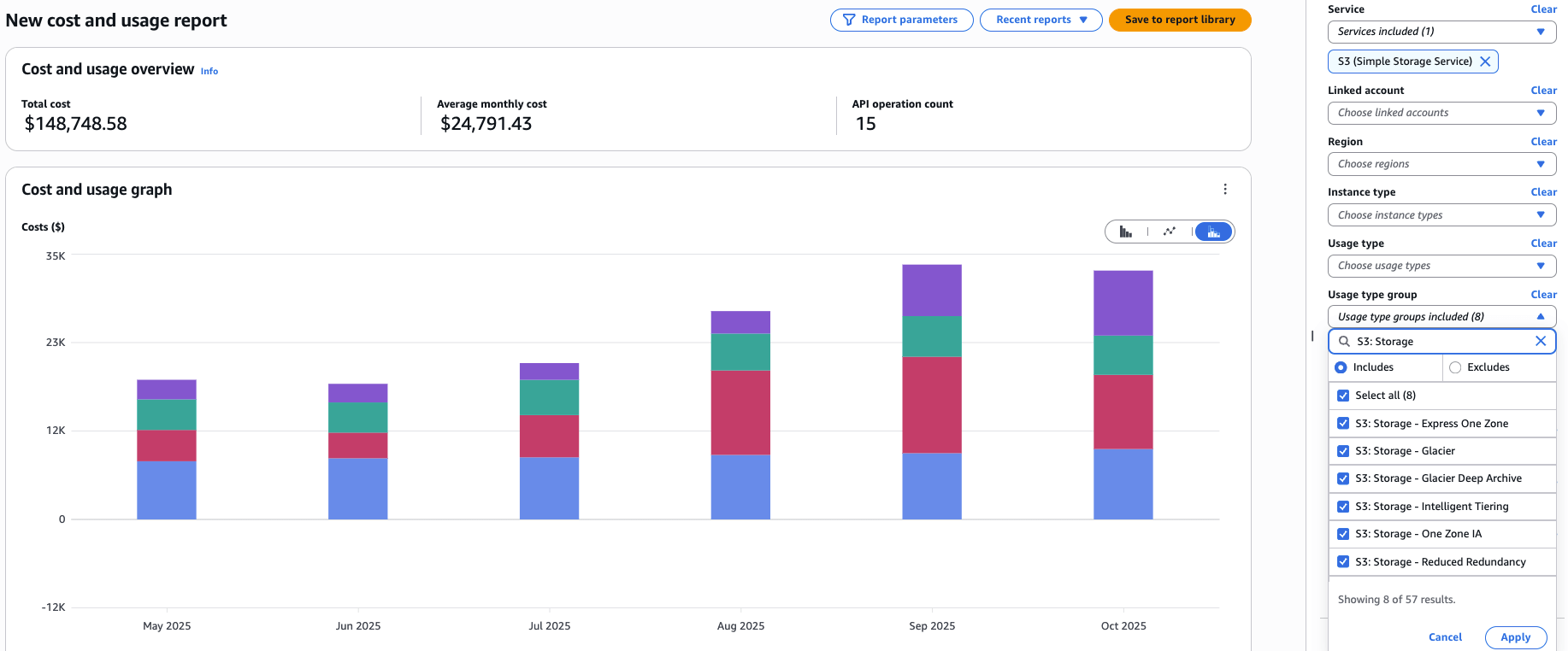
Note: if you filtered to specific buckets in S3 Lens, you should match that scope in Cost Explorer by filtering on Tag:Name to the name of your S3 bucket.
Combining these two reports, we can estimate that by eliminating the noncurrent version bytes from our S3 buckets used for Delta Lake tables, we would save ~40% of the average monthly S3 storage cost ($24,791) → $9,916 per month!
Implement Optimizations
Next, we begin implementing the optimizations for noncurrent versions in a 2-step process:
- Implement lifecycle policies for noncurrent versions.
- (Optional) Disable object versioning on the S3 bucket.
Lifecycle Policies for Noncurrent Versions
In the AWS console (UI), navigate to the S3 bucket’s Management tab, then click Create lifecycle rule.
Choose a rule scope:
- If your bucket only stores Delta tables, select 'Apply to all objects in the bucket'.
- If your Delta tables are isolated to a prefix within the bucket, select ‘Limit the scope of this rule using one or more filters’, and input the prefix (e.g., delta/).
Next, check the box Permanently delete noncurrent versions of objects.
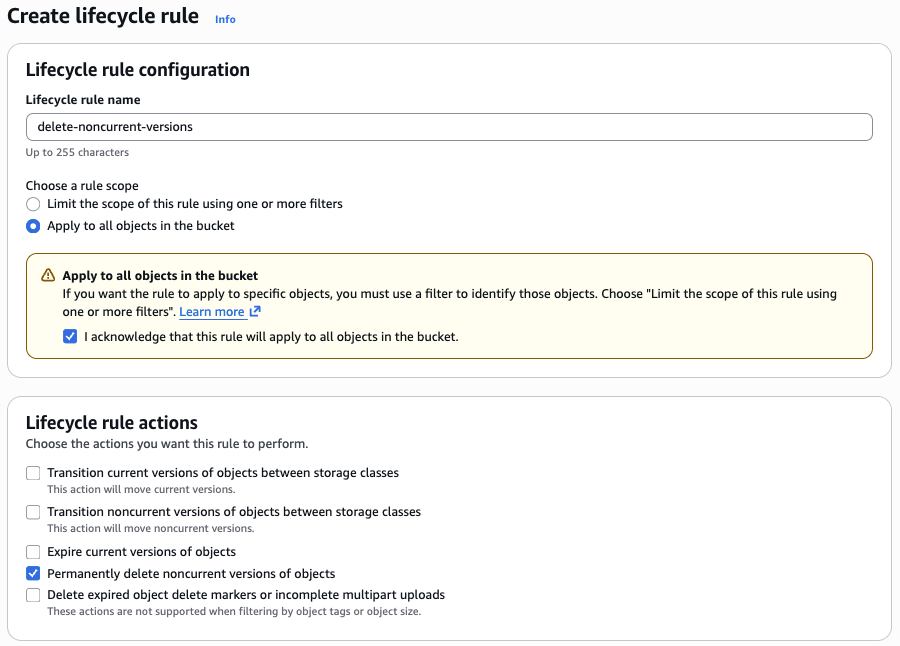
Next, input how many days you want to keep noncurrent objects after they become noncurrent. Note: This serves as a backup to protect against accidental deletion. For example, if we use 7 days for the lifecycle policy, then when we VACUUM a Delta table to remove unused files, we will have 7 days to restore the noncurrent version objects in S3 before they are permanently deleted.
Review the rule before continuing, then click ‘Create rule’ to finish the setup.
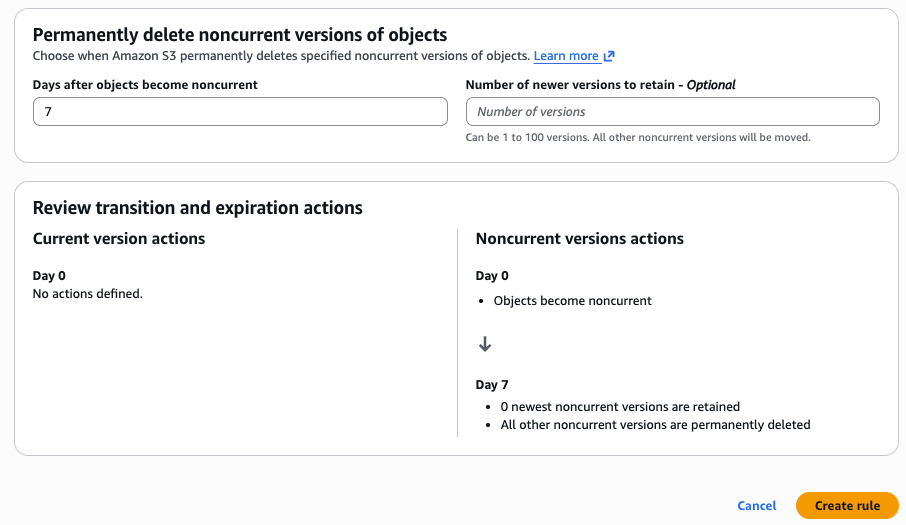
This can also be achieved in Terraform with the aws_s3_bucket_lifecycle_configuration resource:
Disable Object Versioning
To disable object versioning on an S3 bucket using the AWS console, navigate to the bucket’s Properties tab and edit the bucket versioning property.
Note: For existing buckets that have versioning enabled, you can only suspend versioning, not disable it. This suspends the creation of object versions for all operations but preserves any existing object versions.
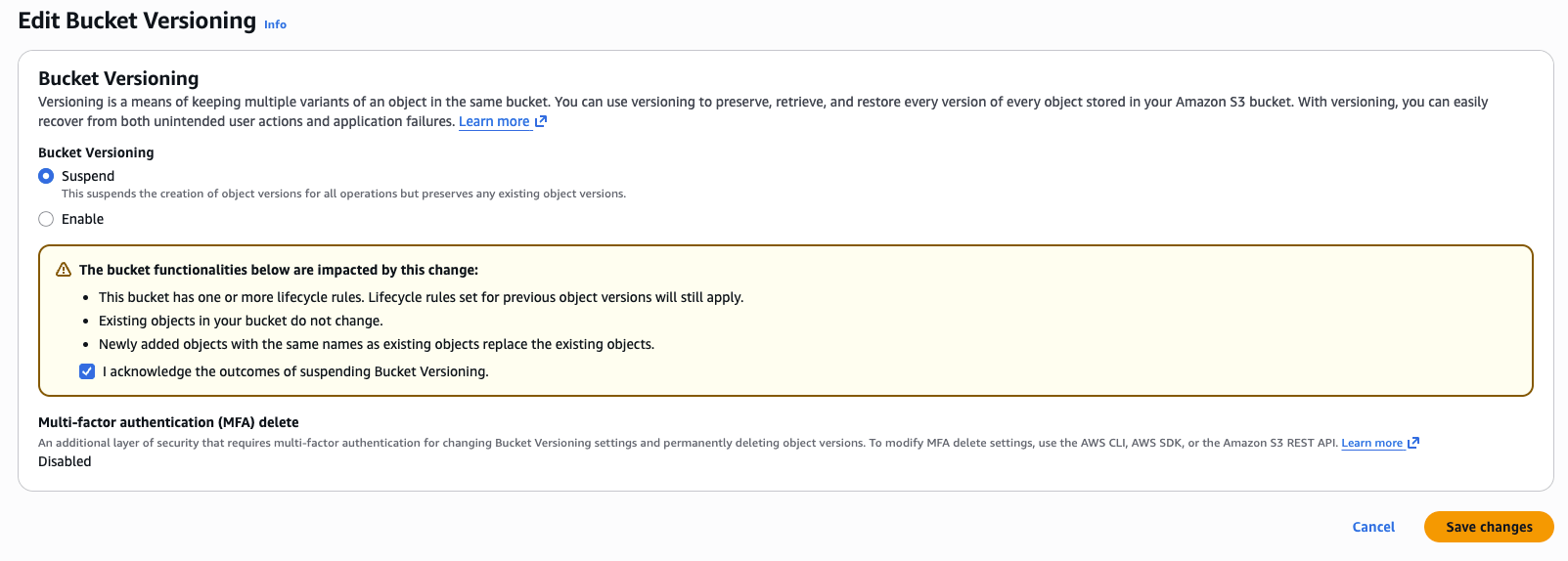
This can also be achieved in Terraform with the aws_s3_bucket_versioning resource:
Templates for Future Deployments
To ensure future S3 buckets are deployed with the best practices, please use the Terraform modules provided in terraform-databricks-sra, such as the unity_catalog_catalog_creation module, which automatically creates the following resources:
- An S3 bucket set up as a Unity Catalog External Location
- IAM role set up as a Unity Catalog Storage Credential
- Creation of a new catalog, using the bucket as the default managed storage
- Customer-managed KMS key for encrypting the S3 bucket
- Disabled S3 versioning
- Disabled public access to the S3 bucket
In addition to the Security Reference Architecture (SRA) modules, you may refer to the Databricks Terraform provider guides for deploying VPC Gateway Endpoints for S3 when creating new workspaces.
4. Real-World Scenarios
By applying the techniques outlined in this blog for optimizing S3 costs, customers can significantly reduce costs for Lakehouse storage without compromising performance.
First Orion is a telecommunications technology company providing branded communication, branded messaging and advanced call protection solutions that help businesses and major carriers deliver secure, personalized phone interactions while protecting consumers from scam and fraud. First Orion optimized their Unity Catalog S3 buckets using these best practices, resulting in monthly storage savings of $16k.
There is usually no trade-off to secure these storage optimizations. However, changing S3 configurations such as lifecycle policies and versioning should always be done with caution. These settings are a crucial factor in disaster recovery and may result in permanently lost data if not handled carefully.
5. Key Takeaways
- If you see high NatGateway-Bytes or DataProcessing-Bytes costs, you may need an S3 Gateway Endpoint.
- Avoid archival storage classes on S3 buckets unless very carefully leveraging Databricks archival support.
- Disable S3 object versioning on buckets meant for Lakehouse storage, or use lifecycle policies to remove noncurrent version objects after a short period of time.
- Utilize proven Terraform modules to deploy new infrastructure with Delta Lake storage best practices, thereby avoiding recurring issues.
6. Next Steps & Resources
Start optimizing your cloud storage today for Lakehouse storage! Use the tools provided in this blog to quickly identify candidate S3 buckets and VPCs.
Reach out to your Databricks account team if you have questions about optimizing your cloud storage.
If you have a success story you’d like to share about using these recommendations, please share this blog and tag us at #databricks #dsa!
Get the latest posts in your inbox
Subscribe to our blog and get the latest posts delivered to your inbox.